

You’ve got an AVI file, you double-click it, and Windows Media Player either throws up an error, plays a black screen, or just refuses to do anything useful. Frustrating, right? You’re not alone. This is one of the most common media playback headaches on Windows, and it’s been tripping people up for years.
The good news is there are several solid fixes, and most of them take less than five minutes. In this guide, you’ll learn exactly why AVI files fail to play, and you’ll get step-by-step solutions, from quick wins like switching to a modern player, all the way to installing codec packs and repairing corrupted files. We’ll cover both Windows 10 and Windows 11.
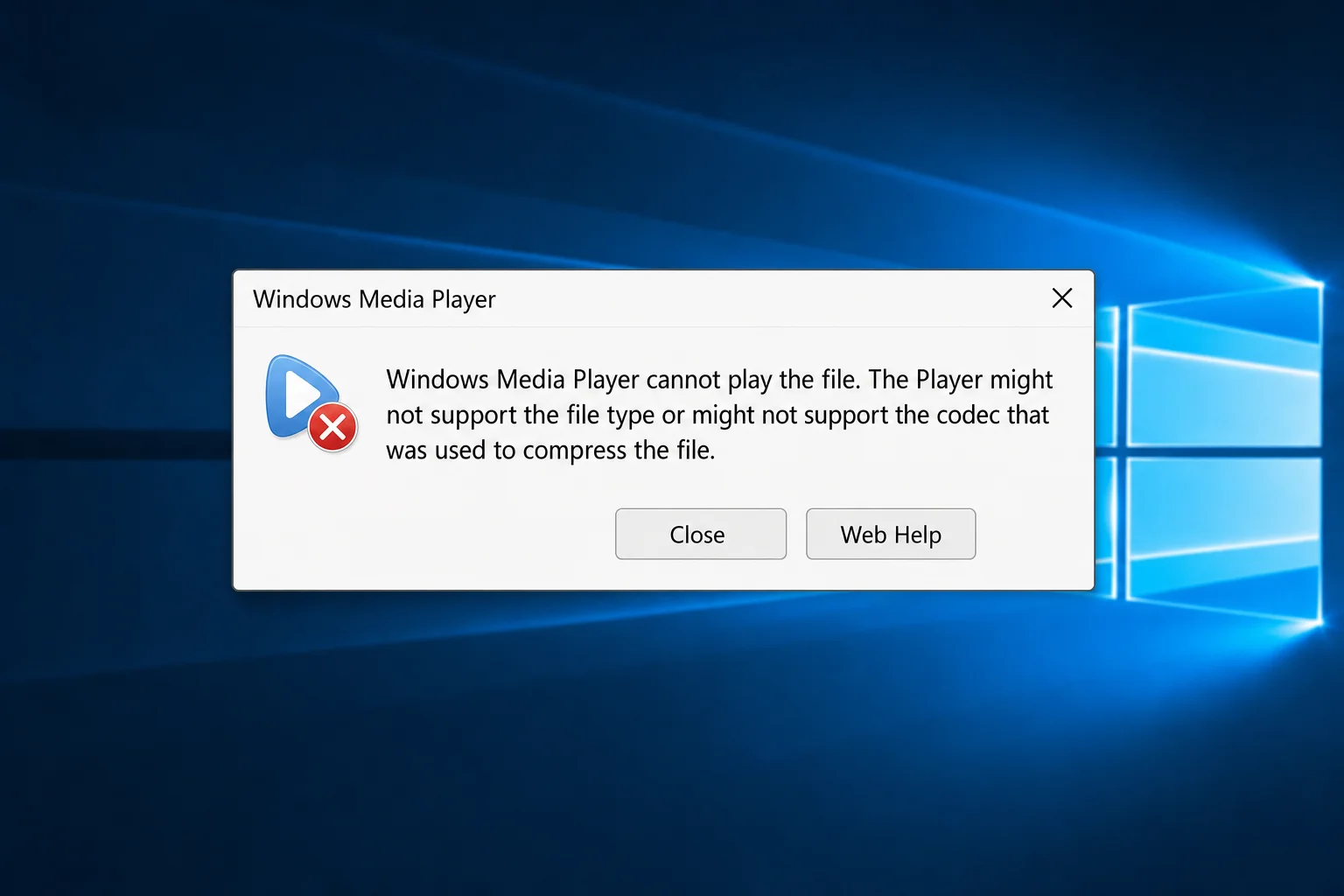
Why Won’t My AVI File Play? (The Short Answer)
Before jumping into fixes, it helps to understand what’s actually going on. AVI (short for Audio Video Interleave) is a very old container format. Microsoft created it back in 1992. Think of a container like a zip file: it holds the video and audio data inside, but the actual content can be compressed using all kinds of different codecs (the technology that encodes and decodes the video).
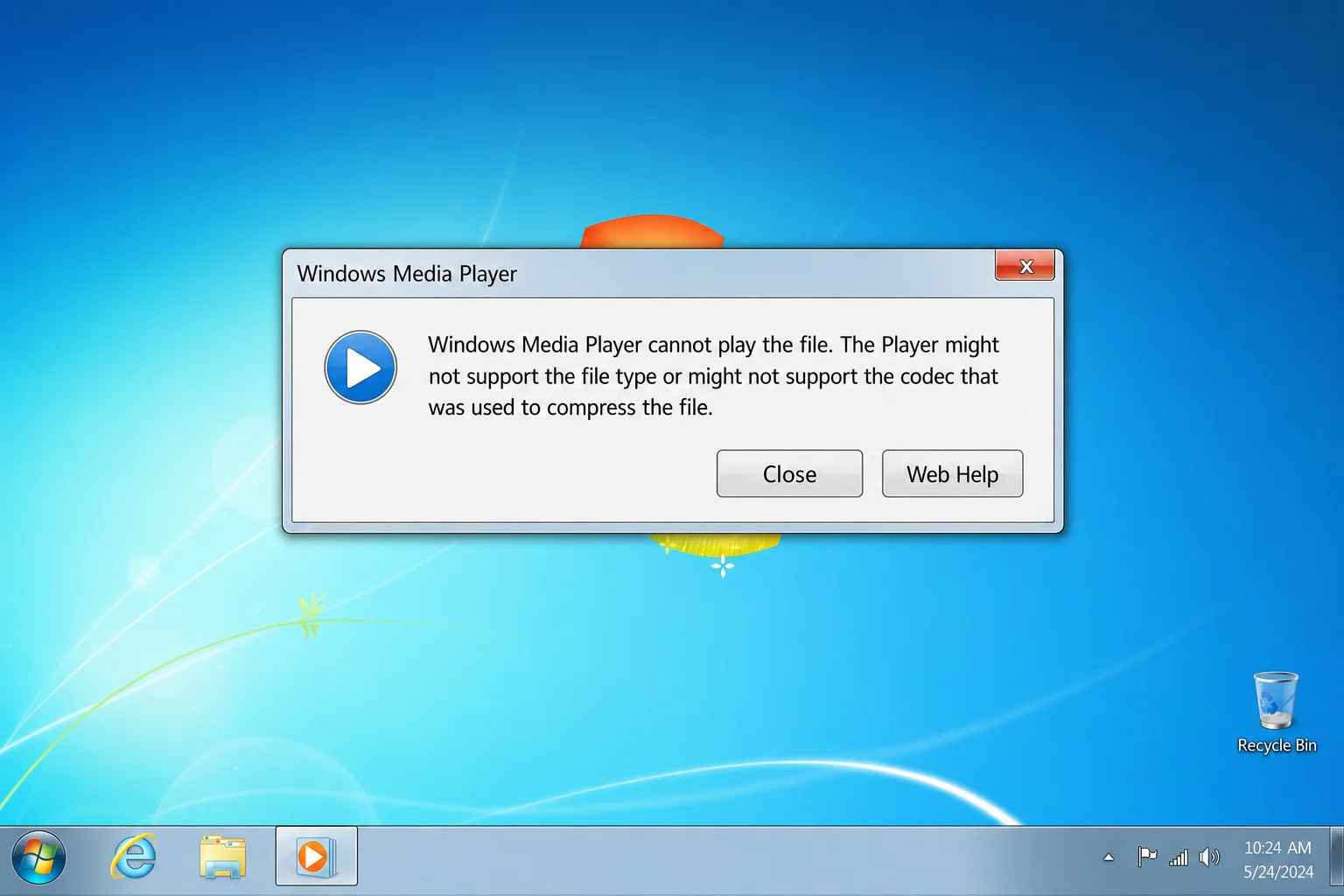
So when Windows Media Player says it “cannot play the file,” it usually means one of two things:
- Missing codec: The video inside the AVI was compressed with a codec that Windows Media Player doesn’t have, like an old DivX, Xvid, or some obscure MPEG-4 variant.
- Corrupted file: The AVI file itself is damaged or incomplete, so nothing can play it properly.
There’s also a bigger-picture issue worth knowing: AVI is now a legacy format, and Windows Media Player is itself a legacy app on Windows 11. Microsoft’s newer Media Player (2022) app has replaced it as the default on Windows 11. That doesn’t mean WMP is gone, it’s still there, but it’s not being actively developed, and it can struggle with some AVI variants.
The easiest fix for most people in 2026 is honestly just to use a modern player or convert the file to MP4. But we’ll walk through all the options so you can pick what works for your situation.
Fix 1: Try a Modern Player First (Quickest Fix)
Before you go digging around in codec settings, try opening the AVI in a different player. This takes about 30 seconds and solves the problem for most people.
Option A: Use VLC Media Player (Recommended)
VLC is free, open source, and handles pretty much every video format ever created, including every AVI variant, without needing any extra codecs. It’s the go-to recommendation for anyone dealing with video playback problems.
- Open the Microsoft Store on your PC (search for it in the Start menu).
- Search for VLC.
- Click Install on VLC media player (the one with the orange traffic cone icon).
- Once installed, right-click your AVI file in File Explorer.
- Select Open with > VLC media player.

If the AVI plays fine in VLC, you know the file itself is fine. It’s just a codec issue with Windows Media Player. You can either keep using VLC going forward (honestly, not a bad idea) or continue with the fixes below to get WMP working.
Option B: Try the Windows 11 Media Player App
If you’re on Windows 11, you’ve got Microsoft’s newer Media Player app built in. It supports AVI natively and is a much more polished experience than the old Windows Media Player.
- Right-click your AVI file in File Explorer.
- Select Open with > Media Player.
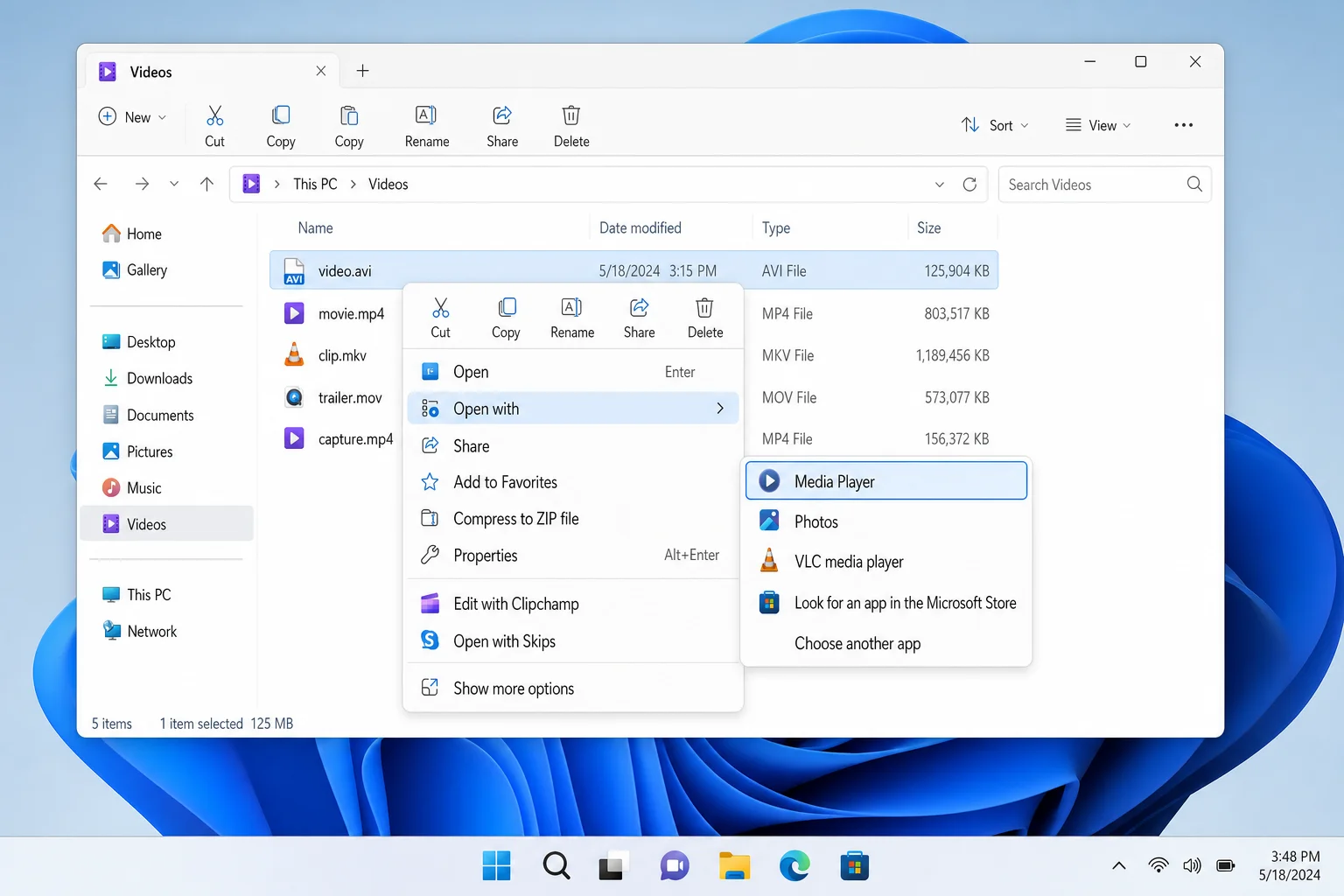
If neither of these works, there’s a good chance the file is corrupted. Skip ahead to Fix 4. Otherwise, keep reading for ways to fix AVI playback in Windows Media Player specifically.
Fix 2: Reset Windows Media Player
Sometimes WMP gets itself into a weird state where it won’t play files it should be able to handle. The fix is to turn it off and back on again, and yes, that actually works here.
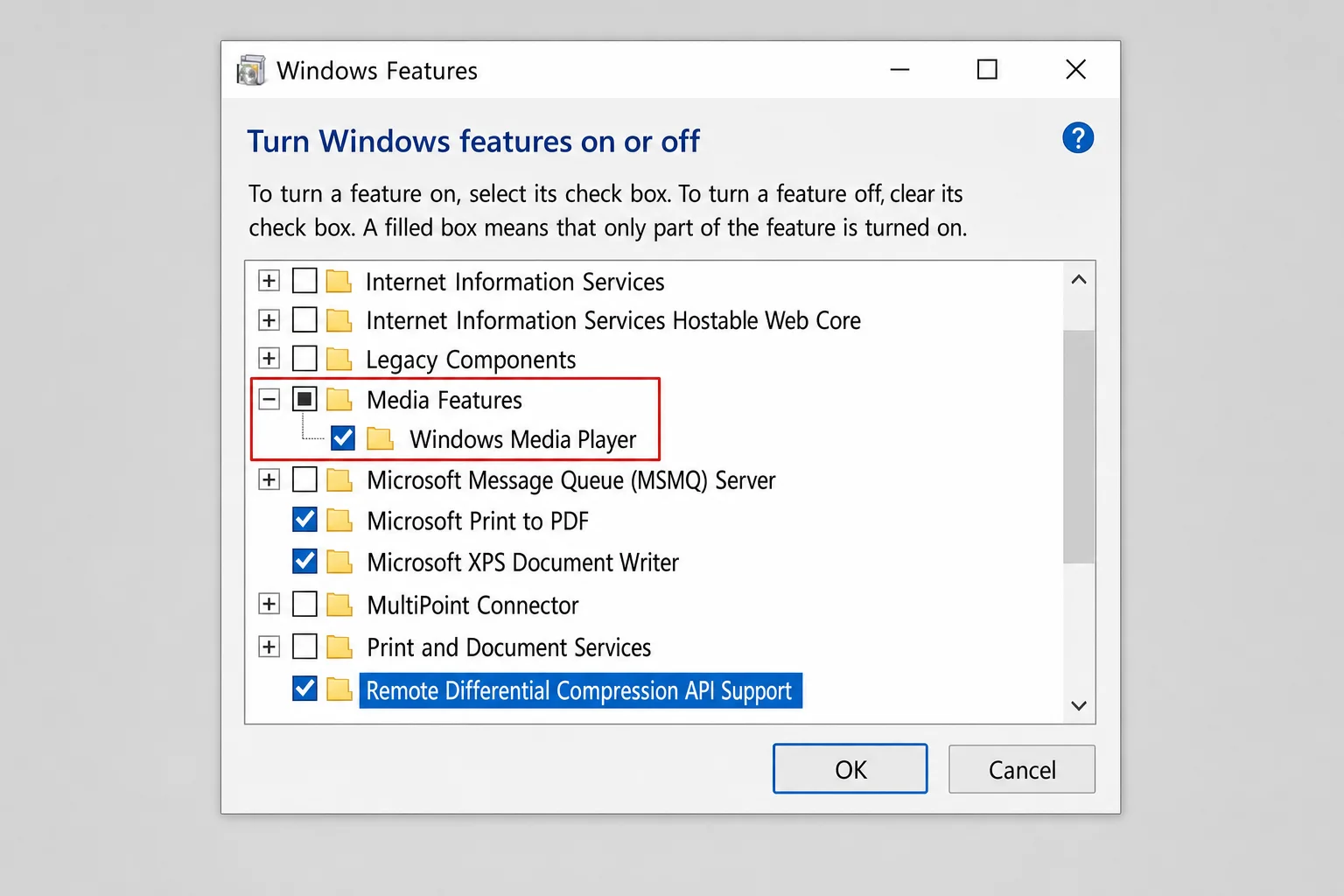
- Press
Windows + Rto open the Run dialog, typeoptionalfeatures, and press Enter. This opens the Windows Features panel. - Scroll down and expand Media Features.
- Uncheck the box next to Windows Media Player and click OK.
- Restart your computer when prompted.
- Repeat steps 1–2, then check the box next to Windows Media Player and click OK.
- Restart again, then try opening your AVI file.
Fix 3: Install a Codec Pack
If you want to stick with Windows Media Player and get it to handle more AVI variants, installing a codec pack is the way to go. A codec pack is basically a bundle of decoders that lets WMP understand video formats it couldn’t before.
A quick warning though: only download codec packs from trusted sources. There are a lot of sketchy sites out there that bundle malware with codec installers. The K-Lite Codec Pack is the most reputable option and has been around for years.
- Go to the official K-Lite Codec Pack website (search “K-Lite Codec Pack”, the official site is codecguide.com) and download the Standard edition.
- Run the installer.
- When asked which players to configure, make sure Windows Media Player is checked.
- Use the default settings for everything else, don’t go changing things unless you know what you’re doing.
- Finish the installation and restart your PC.
- Try opening your AVI file in Windows Media Player.
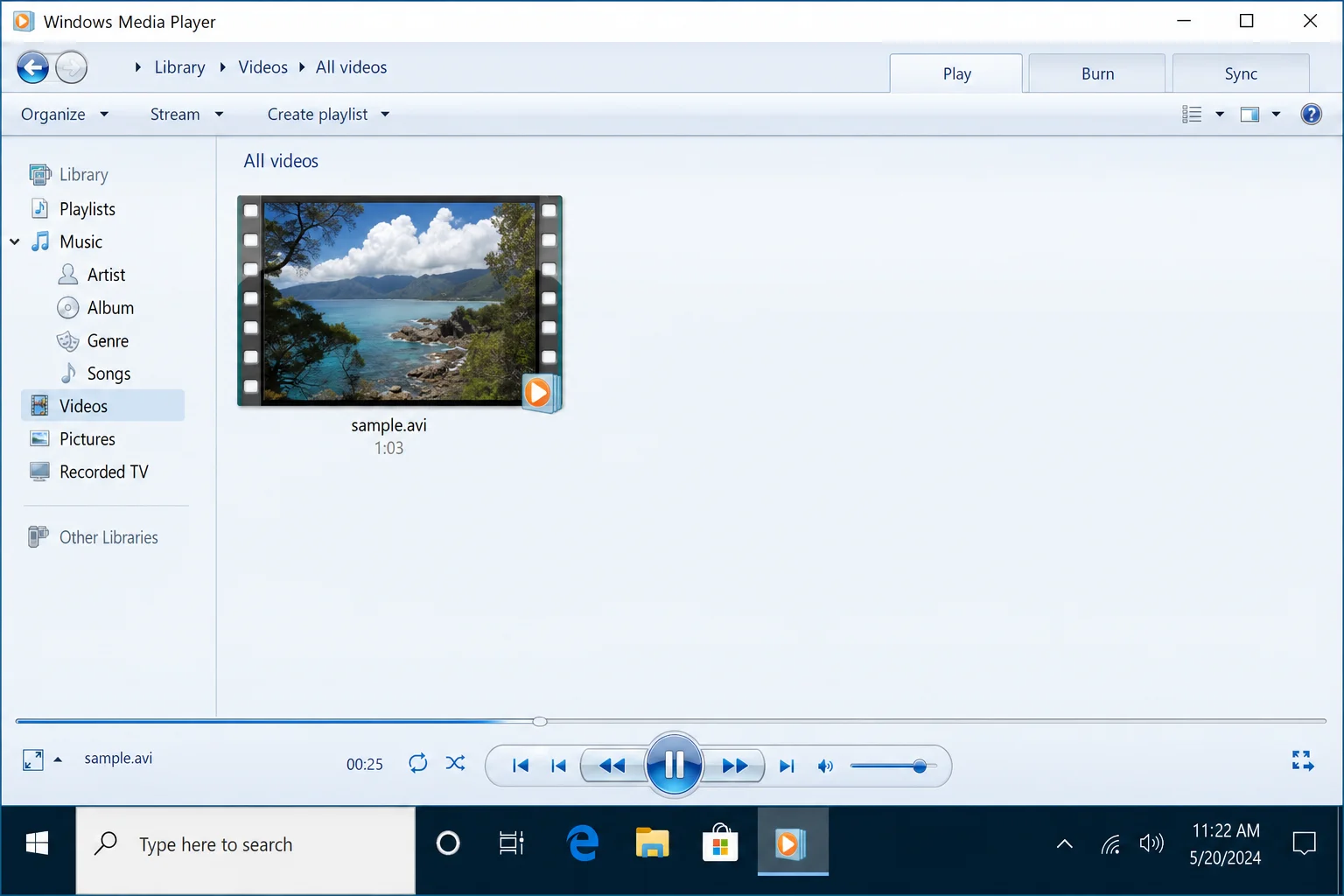
Most users find that codec packs resolve the majority of WMP playback issues at this point. That said, if you’d rather not mess with codec packs, converting the file is often cleaner.
Fix 4: Convert the AVI to MP4
Honestly, this is the most reliable long-term fix. AVI is a legacy format, and MP4 (H.264) is what pretty much everything supports in 2026. Windows Media Player, the Media Player app, Movies & TV, your phone, your TV, streaming services, you name it. Converting once means never dealing with this headache again.
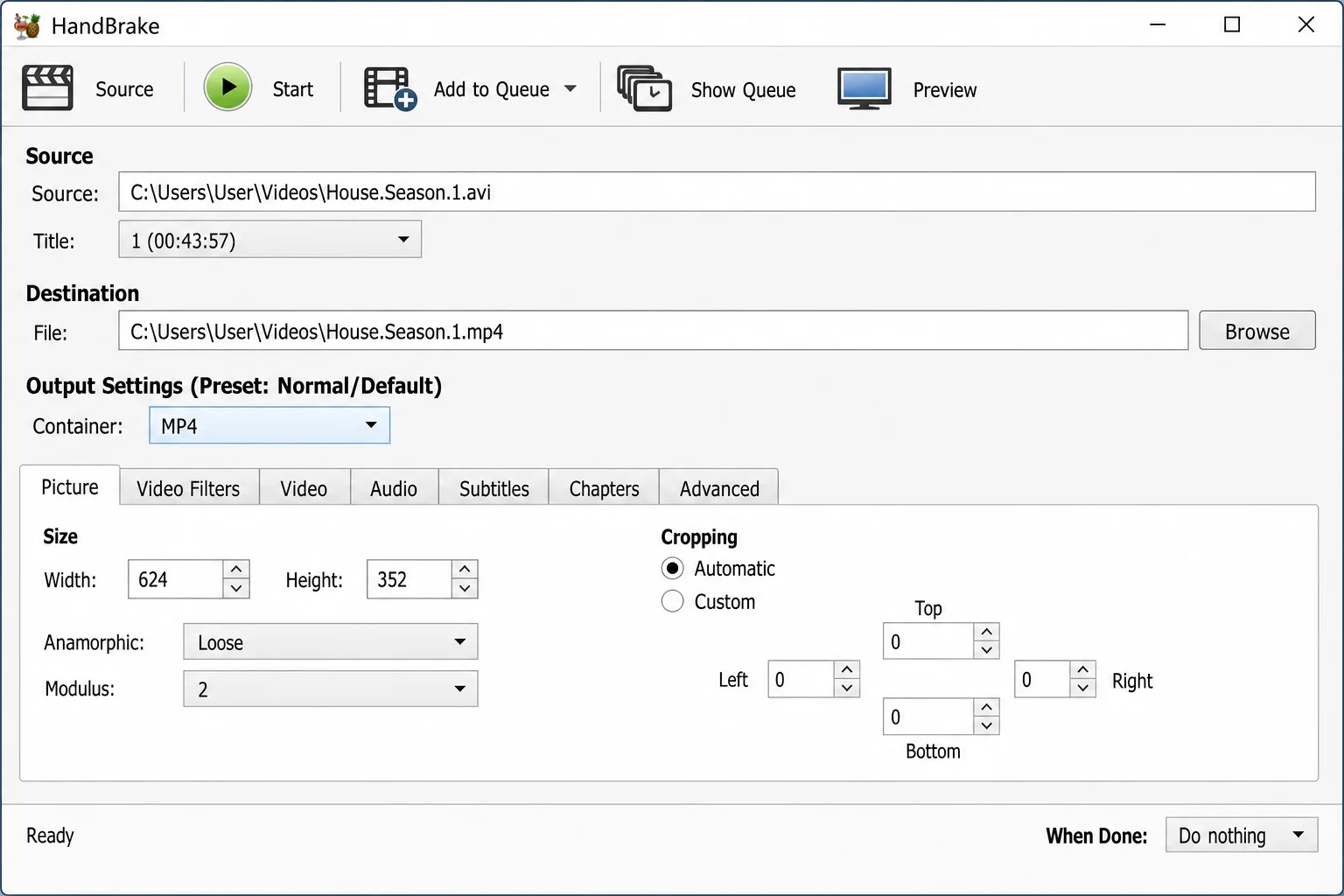
HandBrake is the best free tool for this. It’s open source, well-maintained, and dead simple to use.
- Download and install HandBrake from handbrake.fr.
- Open HandBrake and click Open Source, then browse to your AVI file and select it.
- Under Preset, choose Fast 1080p30 (or whichever resolution matches your video).
- Make sure the output format is set to MP4, it should be by default.
- Click Browse next to the Save As field to choose where to save the converted file.
- Click Start Encode and wait for it to finish.
- Open the new MP4 file in Windows Media Player, it should play without any issues.
Fix 5: Check the Error Details in WMP
If you want to know exactly which codec is missing before you go installing things, Windows Media Player can actually tell you. It’s just a bit hidden.
- Open Windows Media Player and try to play the AVI file.
- When the error appears, look in the Now Playing pane for the file with an exclamation mark next to it.
- Right-click it and select Error Details.
- Click Web Help to see information about the missing codec. Sometimes this will point you to a download link.
- If you see a FourCC code (something like
XVIDorDIVX), you can search for that specific codec online to find out what you need.
Fix 6: Repair a Corrupted AVI File
If your AVI file plays the first frame and then freezes, plays audio but shows a black screen, or won’t open in any player at all, the file itself might be corrupted. This can happen if a download got interrupted, the file was transferred incorrectly, or the storage drive had an issue.
There are a couple of ways to tackle this:
Option A: Re-encode Using VLC
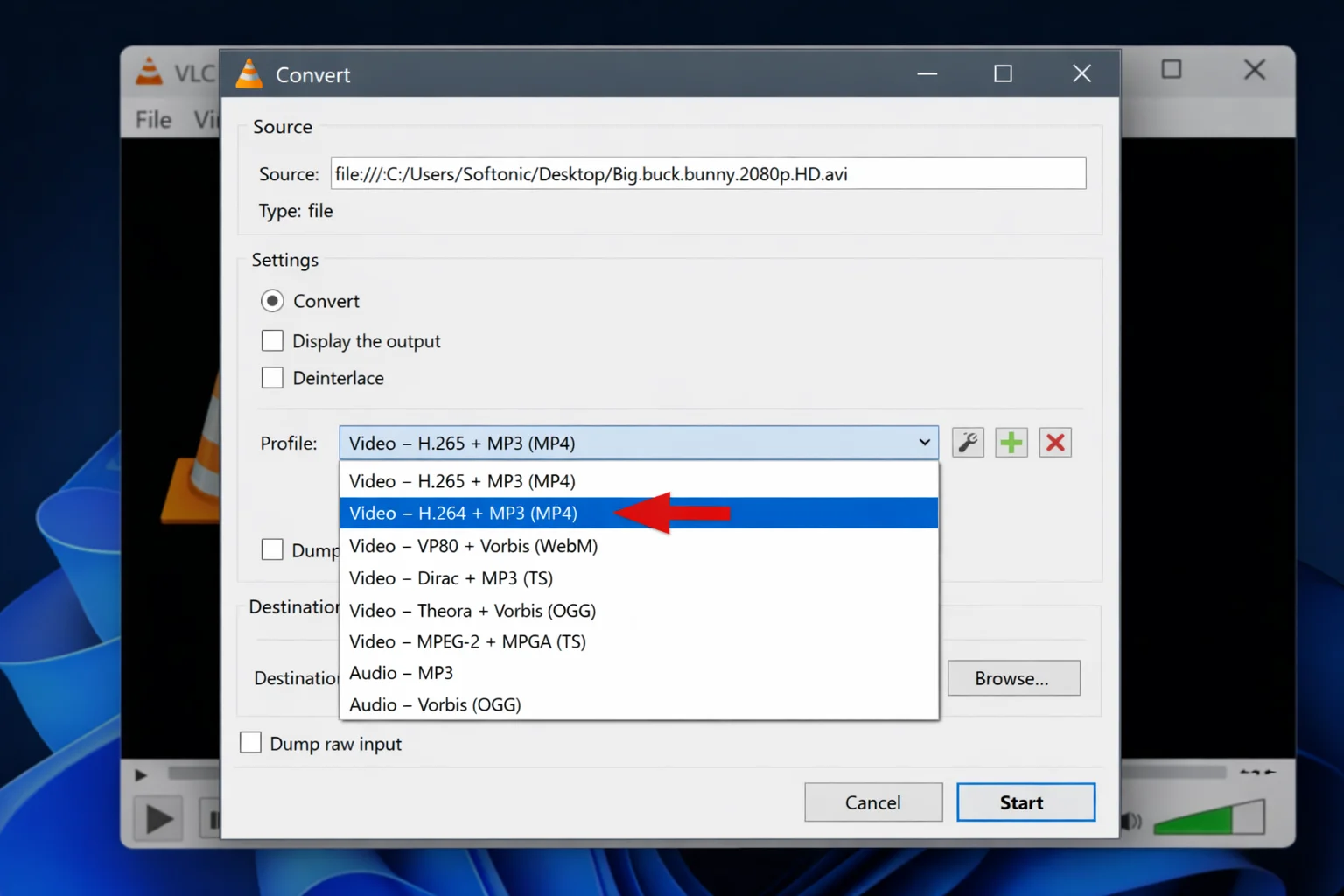
VLC has a built-in conversion tool that can sometimes “repair” a damaged AVI by re-encoding it into a new file.
- Open VLC and go to Media > Convert / Save (or press
Ctrl + R). - Click Add and select your corrupted AVI file.
- Click Convert / Save.
- Under Profile, choose Video – H.264 + MP3 (MP4).
- Set a destination file name and click Start.
- Try playing the resulting file.
Option B: Use a Dedicated Video Repair Tool
For seriously damaged files, a dedicated repair tool does a better job than re-encoding. Tools like 4DDiG Video Repair can scan the AVI file, fix structural errors, and export a working version. Most have a free scan so you can see whether repair is possible before paying for anything.
We’ve got a full guide on how to fix corrupted or damaged video files if you want the full walkthrough.
Fix 7: Run System File Checker
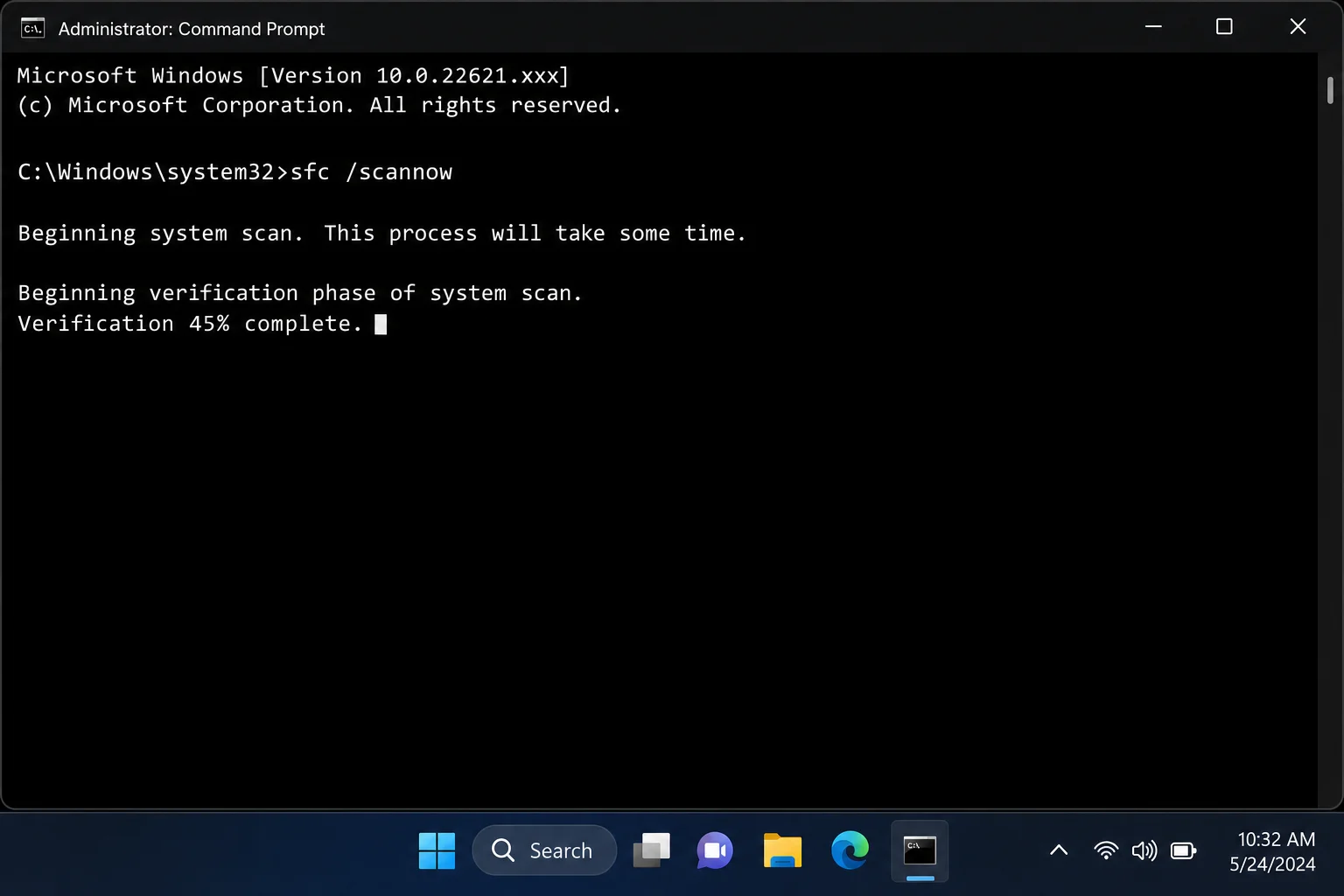
If none of the above has worked and you’re specifically having trouble with Windows Media Player (not just this one AVI file), there might be a deeper Windows issue going on. The System File Checker is a built-in Windows tool that scans for corrupted system files and replaces them automatically.
- Click the Start menu and search for Command Prompt.
- Right-click Command Prompt and select Run as administrator.
- Type the following command and press Enter:
sfc /scannow- Wait for the scan to complete, it can take 10–15 minutes.
- Restart your PC and try playing the AVI file again.
Tips and Troubleshooting
Common Issues
Problem: AVI plays audio but shows a black/blank screen
This almost always means the video codec is missing but the audio codec is fine. Your best bet is to install K-Lite Codec Pack (Fix 3), use VLC, or convert to MP4 (Fix 4).
Problem: WMP plays the first frame then freezes
This points to either a corrupted file or an incompatible codec. Try opening it in VLC first. If VLC also freezes, the file is likely corrupted (see Fix 6). If VLC plays it fine, it’s a codec issue with WMP.
Problem: “A codec is required to play this file” error in WMP
Use Fix 5 to check the Error Details and identify which codec is missing. Then either install K-Lite (Fix 3), convert to MP4 (Fix 4), or just use VLC going forward.
Problem: WMP isn’t listed as an option when right-clicking the AVI
Windows Media Player may have been disabled. Use Fix 2 to re-enable it through Windows Features.
Pro Tips
- Going forward, prefer MP4: AVI is a legacy format from 1992. If you’re recording, downloading, or sharing video, MP4 (H.264) is far more compatible across devices and players in 2026.
- VLC is worth keeping around: Even if you fix WMP today, VLC is a great backup player that handles virtually any video format without fuss. It’s free and takes up minimal space.
- Stick to trusted codec sources: If you go the codec pack route, only download from the official K-Lite site (codecguide.com). Sketchy codec sites are a classic malware delivery method.
- Windows Media Player is legacy on Windows 11: Microsoft isn’t actively developing it anymore. The new Media Player app is the replacement, and it handles AVI just fine for most cases.
Wrapping Up
For most people, the fastest fix is to open the AVI in VLC or the Media Player app on Windows 11. That alone solves the problem 90% of the time. If you need to get it working in Windows Media Player specifically, installing the K-Lite Codec Pack is a solid choice, and converting to MP4 with HandBrake is worth trying if you want a permanent, hassle-free solution.
AVI has had a good run, but it’s showing its age. If you’re still running into playback issues after trying these fixes, it might be time to convert your AVI library to MP4 and move on. Your future self will thank you. Still stuck? Drop a comment below and we’ll help you figure it out.